Store Help
FAQ
Account Questions
- How do I create a store account?
- What do I do if I don't receive my activation email?
- How do I log in and out of my store account?
- How do I change my password?
- How do I update my account’s email address?
- How do I change my billing and shipping information?
- Can I view my order history?
Shipping Questions
- What items don’t qualify for free economy shipping?
- What items don’t apply toward the minimum to receive free economy shipping?
Ordering Questions
- I do not want to place an online order with my credit card. Can I mail in my order instead?
- When can I expect to receive my order?
- Will my coupon code work with bulk discounts?
- How do I place a tax-exempt order?
Digital Answers Magazine Questions
Digital Downloads
- How do I access my digital downloads?
- How do I download digital books to my eReader?
- How do I read fixed-layout EPUB format eBooks?
- My video download will only play in my browser and I can’t download it. What should I do?
- My video download does nothing when I try to download it. What should I do?
Miscellaneous Questions
- I am not receiving email from your store.
- How do I find a specific item that I am looking for?
- Do you have an affiliate marketing program?
How do I create a store account?
Simply click Sign in/register at the top left of any store page. (This link will only appear if no one is currently logged into their store account in your browser. On mobile devices, you may see only a person icon, instead of a Sign in/register link.) Fill out the registration form and click the Create Account button. You will be sent an email with instructions to verify your email address, which completes the registration process.
What do I do if I don't receive my activation email?
The most common reason an email is not received from the bookstore is due to communication being blocked by a firewall or ISP. The emails may have been filtered into your email program’s junk folder as well. Please check your settings—ensure communication from AnswersInGenesis.org is approved.
You can request another verification email from your account page.
How do I log in and out of my store account?
To log in, simply click Sign in/register at the top right of any store page.
To log out, click your name at the top right of the page, and then click the "Sign out" link. (On mobile devices, you may see only a person icon, instead of your name.)
How do I change my password?
Your password can be changed from your account page. From there, click the "Edit my information" button.
While logged in, you can access your account page from any page in the store. Simply click your user ID, which will appear in the header.
How do I update my account’s email address?
Your email address can be changed from your account page.
While logged in, you can access your account page from any page in the store. Simply click your user ID, which will appear in the header.
How do I change my billing and shipping information?
This information can be changed from your account page.
While logged in, you can access your account page from any page in the store. Simply click your user ID, which will appear in the header.
Can I view my order history?
Yes. This information can be accessed from your account page. Just choose the "Order History" option from the account menu. Alternately, you can use the "Order History" link in the footer of the store.
What items don’t qualify for free economy shipping?
Special charges apply to oversized items, and bulk cases which are sold at significant savings per item. We are unable to provide free economy shipping for these items.
Note: Free shipping is for contiguous US addresses only.
What items don’t apply toward the minimum to receive free economy shipping?
For contiguous US addresses, free economy shipping is available when at least the minimum amount of merchandise is being shipped together. The following items do not apply towards the minimum:
- Gift Cards
- Virtual Products
- Donations
- Items with Special Shipping Charges
I do not want to place an online order with my credit card. Can I mail in my order instead?
Yes, we have a mail-in option available. Begin by following the standard checkout steps. When you reach the final step of the checkout process, click the radio button beside “Check / Money Order” to specify this method of payment and then finish placing your order. After your order has been placed, you will be given an order confirmation page that contains a printable receipt page link. Click this link, print the resulting page, and mail it with your check or money order to Answers in Genesis, PO Box 510, Hebron, KY 41048.
When can I expect to receive my order?
Your order will be delivered within the timeframe defined by your chosen shipping option. For the exact details of your chosen shipping option, please read our delivery policy.
Will my coupon code work with bulk discounts?
Promotional codes and offers may not be combined with any automatically applied bulk discounts. Products with bulk discounts are sold at significant savings per item. We are unable to provide additional savings for these discounted items.
How do I place a tax-exempt order?
Tax-exempt ordering now available online. No phone call required! Get started
How do I read the digital Answers Magazine?
Access all 20 years of our free digital Answers magazines at answersingenesis.org/magazine/. Click on the magazine issue that you would like to read.
You can turn pages and scroll through the magazine, similar to reading a printed copy. Internet connectivity is required.
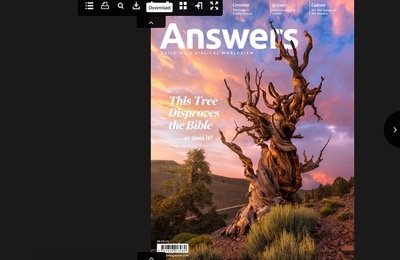
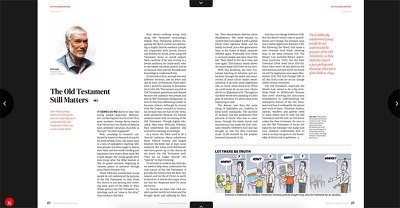
Customize your magazine experience using the top drop-down menu to change settings, add bookmarks, download a PDF copy, and more. Click on icons throughout the magazine to access subscriber extras while enjoying online interactivity.
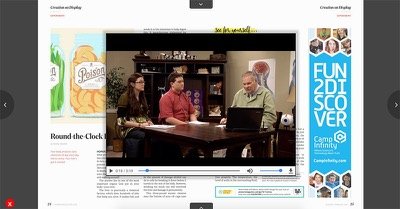
Can I download for offline viewing?
Offline viewing is available, too! Download the PDF of an issue using the download icon from the top drop-down menu within each digital magazine.
How do I access my digital downloads?
After you purchase digital media, you will be able to download the files from your account page.
- Go to your account page.
- Choose the Downloads option from the menu.
- Click the Download button next to the item you wish to download. (Depending on your browser configuration, you may need to, do an “Alt + click”—or ̶Control + click” for Mac users—on the button instead.)
- The file should immediately start downloading and show its status in a download dialog box.
How do I download digital books to my eReader?
Generally, you will need to download the file to your computer, and then transfer it to your device. Some devices will allow you to download digital media directly, without copying it to your computer first. General instructions for common devices are listed below. (Note that many readers do not support fixed-layout EPUB format. If you purchase one of our fixed-layout eBooks, you will need to use a compatible reader. See "How do I read fixed-layout EPUB format eBooks?" for more information.)
iPad / iPhone:
- If you do not already have it, install the free iBooks app from the App Store.
- Log in to your store account.
- From your iPad / iPhone, access the digital media download page.
- Click the download link for your selected item.
- Click “Open in iBooks.”
- Your book is now in the iBooks library. Enjoy!
Nook:
- Log into your store account.
- Access the digital media download page.
- Download the file ending in .epub.
- When prompted to “Save As” we recommend saving to your “My Documents” folder.
- Plug in your USB cable to the nook and then into the USB port on your computer.
- Open your file Manager.
- For Windows: Right-Click on “start” and then click “explorer.”
- For Mac: Click on the “documents” icon in the dock.
- For linux / Ubuntu: Open the file manager.
- Find and click on the drive labeled “Nook” then click on “My Documents.”
- Locate the .epub file on your computer.
- It is most likely on your computers download or My Documents folder.
- Drag and drop or cut and paste the .epub file from the location you saved the .epub file to the “Nook,” “My Documents” folder.
- Unplug the Nook from the computer.
- On the Nook go to “My library” then “My Documents.” Your new files should show up in this folder. Enjoy!
Kindle:
- Log into your store account.
- Access the digital media download page.
- Download the file ending in .mobi.
- When prompted to “Save As” we recommend saving to your “My Documents” folder.
- Plug in your USB cable to the Kindle and then into the USB port on your computer.
- Open your file Manager.
- For Windows: Right-Click on “start” and then click “explorer.”
- For Mac: Click on the “documents” icon in the dock.
- For linux / Ubuntu: Open the file manager.
- Find and click on the drive labeled “Kindle” then click on “My Documents.”
- Locate the .mobi file on your computer.
- It is most likely on your computers download or My Documents folder.
- Drag and drop or cut and paste the .mobi file from the location you saved it to the “Kindle,” “My Documents” folder.
- Unplug the Kindle from the computer.
- On the Kindle go to “My library” then “My Documents.” Your new files should show up in this folder. Enjoy!
Amazon also provides other methods to transfer your content without connecting your Kindle to your computer. You can get more information here: https://www.amazon.com/gp/sendtokindle.
Windows or Mac Computer:
To read ebooks on your computer, you will need to have an ereader program installed. One option that is available for free is Adobe Digital Editions. It can read EPUB format ebooks. It is compatible with both Windows and Mac, and can be downloaded from here: https://www.adobe.com/solutions/ebook/digital-editions.html.
Once Adobe Digital Editions is installed, you can simply download the EPUB file to your computer. You can drag-and-drop a downloaded ebook onto Adobe Digital Editions to add it to your library, or double-click it to open it in the reader.
How do I read fixed-layout EPUB format eBooks?
Most ebooks use a flexible layout that adjusts to fit the screen of the computer or device being used to read them. However, in some cases, such as children's books and some scientific books, the layout needs to be preserved. The fixed-layout EPUB format allows eBooks to preserve the page layout of the printed book. Not all ereader programs and devices cannot read this format.
In order to read any of our eBooks that are designated as "fixed-layout," you will need to use a compatible reader. Examples of free fixed-layout EPUB readers for various platforms are below:
- iBooks for iOS ans OS X. This is free in the Apple App Store.
- Google Play Books and Infinity Reader for Android. These are both free in the Google Play store.
- Readium for Chrome. This is a Chrome browser extention, available free in the Chrome Market.
My video download will only play in my browser and I can’t download it. What should I do?
Depending on your browser's configuration, it may attempt to play the video rather than download it. To bypass your browser’s configurations to play the video, follow these steps.
- Go to your account page.
- Choose the Downloads option from the menu.
- Instead of a normal click, do an “Alt + click” on the “Download” link to the right of the video title. (“Option + click” for Mac users.)
- The video should immediately start downloading and show its status in a download dialog box.
My video download does nothing when I try to download it. What should I do?
This is typical behavior for Internet Explorer. Follow these steps to retrieve your video download.
- Go to your account page
- Choose the Downloads option from the menu.
- Right-click on the “Download” button to the right of the video title.
- Choose the “Save link as...” option from the pop-up menu.
- A “Save As” dialog box should then display asking where you would like to save your video and by what name. Choose your preferences and then click “Save.”
- The video should immediately start downloading and show its status in a download dialog box.
I am not receiving email from your store.
The most common reason an email is not received from the bookstore is due to communication being blocked by a firewall or ISP. The emails may have been filtered into your email program’s junk folder as well. Please check your settings—ensure communication from AnswersInGenesis.org is approved.
How do I find a specific item that I am looking for?
The easiest way to find a specific item is by using our powerful search engine, located at the top, right-hand side of the store. You can enter in any defining information about the item: author, partial title, format, keywords, etc. If you still are unable to find what you are looking for, please send us an email. We may not carry the item, but would like to know what our customers are interested in.
Do you have an affiliate marketing program?
Our affiliate program has offically come to a close. We are incredibly grateful for your interest in promoting our ministry.
Contact Customer Service
Phone Support
Call (800) 778-3390 to place an order. Hours: 9 am – 5 pm (EST), Monday – Friday
Note: Orders placed via AnswersBookstore.com are final upon verified submission. We are unable to process changes or to cancel an order after submission and credit card verification. Please ensure that your order is complete and correct before finalizing. Thank you!
Email Support
Before sending an email, please review our help topics on this page. If you are still having problems or have a question, contact us using one of the following options:
Support the creation/gospel message by donating or getting involved!

Answers in Genesis is an apologetics ministry, dedicated to helping Christians defend their faith and proclaim the good news of Jesus Christ.
- Customer Service 800.778.3390
- Available Monday–Friday | 9 AM–5 PM ET
- © 2026 Answers in Genesis